
Important
Drones that are still bound to another user's account cannot be activated by new owners. This significantly reduces resale value. Always unbind before selling.
Quick Steps to Unbind
1
Open DJI Fly App
Launch the DJI Fly app on your smartphone or tablet and ensure you're logged into your DJI account.
2
Go to Device Settings
Connect to your drone and navigate to the device settings by tapping the three dots menu in the top right corner.
3
Access Cloud Services
Scroll down to find 'DJI Account' or 'Cloud Services' section and tap to open it.
4
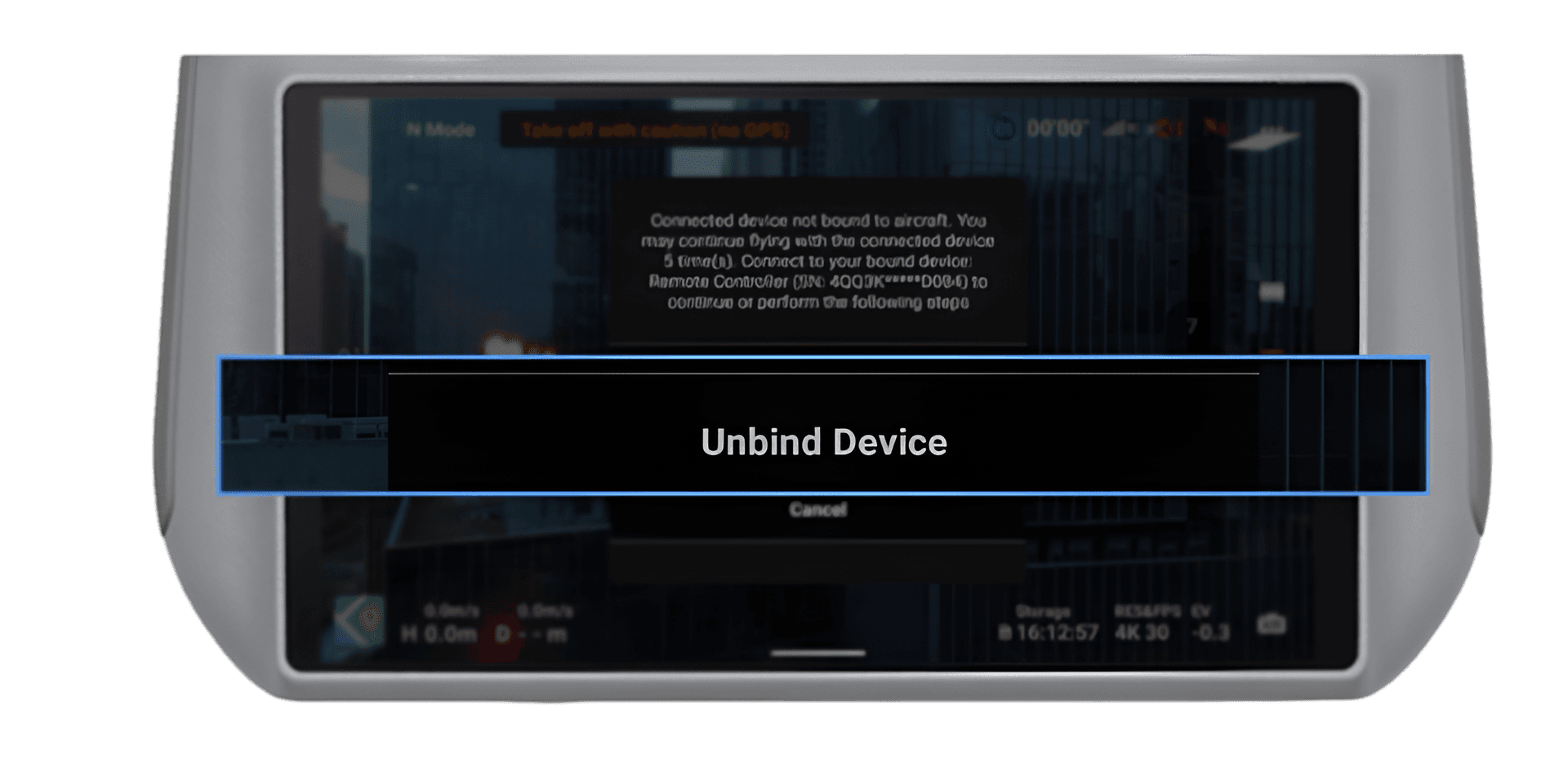
Unbind Device
Look for 'Unbind Device' or 'Remove from Account' option and confirm the action when prompted.
Instructions by App
DJI
DJI Fly
Mavic 3 Series, Air Series, Mini Series, Avata, FPV
- Open DJI Fly and connect to your drone
- Tap your profile icon in the top right
- Select 'Device Management'
- Find your drone and tap 'Unbind'
- Confirm the unbinding when prompted
DJI
DJI GO 4
Phantom 4 Series, Inspire 2, Mavic Pro/Platinum
- Open DJI GO 4 and connect to your aircraft
- Go to 'Me' tab at the bottom
- Tap 'My Equipment'
- Select the device you want to unbind
- Tap 'Unbind' and confirm
DJI
DJI Pilot
Matrice Series, Enterprise Drones
- Open DJI Pilot app
- Navigate to Settings > About
- Find 'Device Binding' option
- Select 'Unbind from Account'
- Enter your password to confirm